Overview

Native agents are built and deployed directly within watsonx Orchestrate. They use IBM-managed models, tools, and runtime. Native agents can call tools, use external agents as collaborators, and be chatted with directly by end-users. This guide walks you through building, validating, packaging, and listing a native agent in the watsonx Orchestrate Agent Catalog using the Agent Development Kit (ADK).
Catalog onboarding limitations: We currently don’t support onboarding certain native agent components and tools into the Catalog, including Knowledge, Flows, Model Gateway, OpenAPI Tools, and Langflow Tools. The team is actively working on expanding this capability, so stay tuned — we’ll announce updates as soon as these become available.Note that these components are fully supported by the watsonx Orchestrate platform for your own use; this limitation applies only to catalog onboarding for partner distribution.

Prerequisites

Before you begin, ensure you have:
  • Access to a watsonx Orchestrate environment
  • The Agent Development Kit (ADK) installed
  • Python 3.8 or higher (for building tools)
  • An SVG icon for your agent (square, 64-100px, max 200KB)

Steps to create and list your native agent

1

Install the watsonx Orchestrate Agent Development Kit

Follow the instructions in the Getting started with the ADK to:
  1. Install the Agent Development Kit
  2. Connect it to your watsonx Orchestrate environment
  3. Configure your credentials
2

Create a native agent

Build your native agent following the Getting started with the ADK tutorial.To learn more about native agent capabilities, see Authoring agents .Key components of a native agent:
  • LLM selection: Choose from IBM-managed models (e.g., Granite, Llama)
  • Instructions: Define your agent’s behavior and personality
  • Tools: Add capabilities through Python or OpenAPI tools
  • Collaborators: Connect to external agents for specialized tasks
3

Build tools for your agent

Native agents can call tools to perform tasks. Define tools as Python or YAML (OpenAPI) files.Python tool example:
search_healthcare.py
from typing import List
import requests
from pydantic import BaseModel, Field
from enum import Enum
from ibm_watsonx_orchestrate.agent_builder.tools import tool

class ContactInformation(BaseModel):
    phone: str
    email: str

class HealthcareSpeciality(str, Enum):
    GENERAL_MEDICINE = 'General Medicine'
    CARDIOLOGY = 'Cardiology'
    PEDIATRICS = 'Pediatrics'
    ORTHOPEDICS = 'Orthopedics'
    ENT = 'Ear, Nose and Throat'
    MULTI_SPECIALTY = 'Multi-specialty'

class HealthcareProvider(BaseModel):
    provider_id: str = Field(None, description="The unique identifier of the provider")
    name: str = Field(None, description="The providers name")
    provider_type: str = Field(None, description="Type of provider")
    specialty: HealthcareSpeciality = Field(None, description="Medical speciality")
    address: str = Field(None, description="The address of the provider")
    contact: ContactInformation = Field(None, description="Contact information")

@tool
def search_healthcare_providers(
        location: str,
        specialty: HealthcareSpeciality = HealthcareSpeciality.GENERAL_MEDICINE
) -> List[HealthcareProvider]:
    """
    Retrieve healthcare providers based on location and specialty.

    Args:
        location: Geographic location (city, state, zip code)
        specialty: Medical specialty to filter by

    Returns:
        A list of healthcare providers
    """
    resp = requests.get(
        'https://find-provider.example.com',
        params={'location': location, 'speciality': specialty}
    )
    resp.raise_for_status()
    return resp.json()['providers']
OpenAPI tool example:
search_healthcare.yaml
servers:
 - url: https://find-provider.example.com
paths:
  /:
    get:
      operationId: getHealthCareProviders
      summary: Gets a list of healthcare providers
      parameters:
        - in: query
          name: location
          schema:
            type: string
          description: The city, state or zipcode
        - in: query
          name: speciality
          schema:
            type: string
            enum: ["General Medicine", "Cardiology", "Pediatrics", "Orthopedics", "ENT", "Multi-specialty"]
          description: The speciality of the healthcare provider
      responses:
        '200':
          description: Successfully retrieved list
          content:
            application/json:
              schema:
                type: object
                properties:
                  providers:
                    type: array
                    items:
                      type: object
To learn more about tools, see Overview of Tools .
4

Import agent into Orchestrate

Import your agent into your draft environment:
orchestrate agents import -f my_native_agent.yaml
For more information, see Importing/Deploying agents .
5

Test your agent

Option 1: Test in watsonx Orchestrate UI
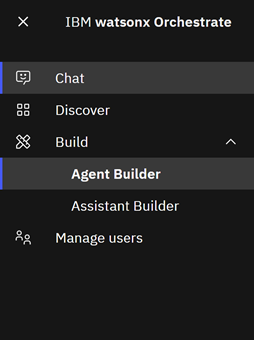
  1. Log in to your watsonx Orchestrate instance and open the Agent Builder: Open the Agent Builder
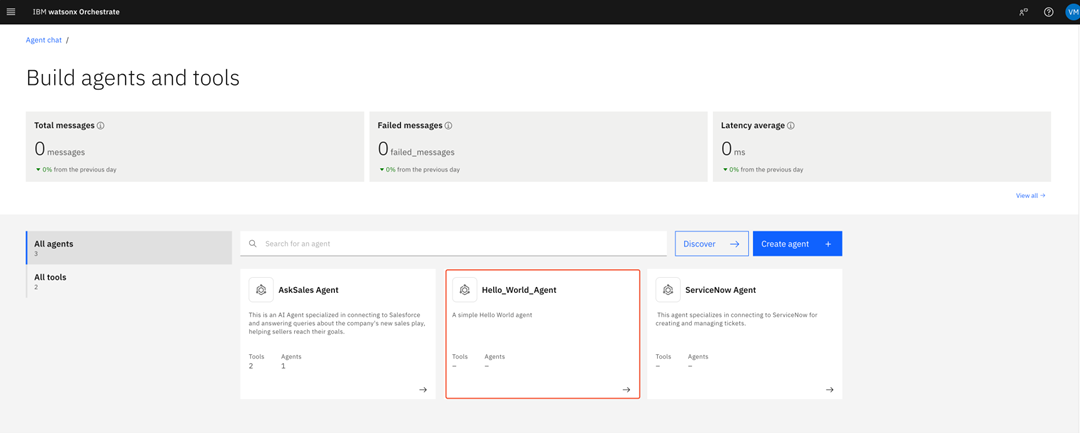
  2. In the Build agents and tools page, select your agent: Select the agent
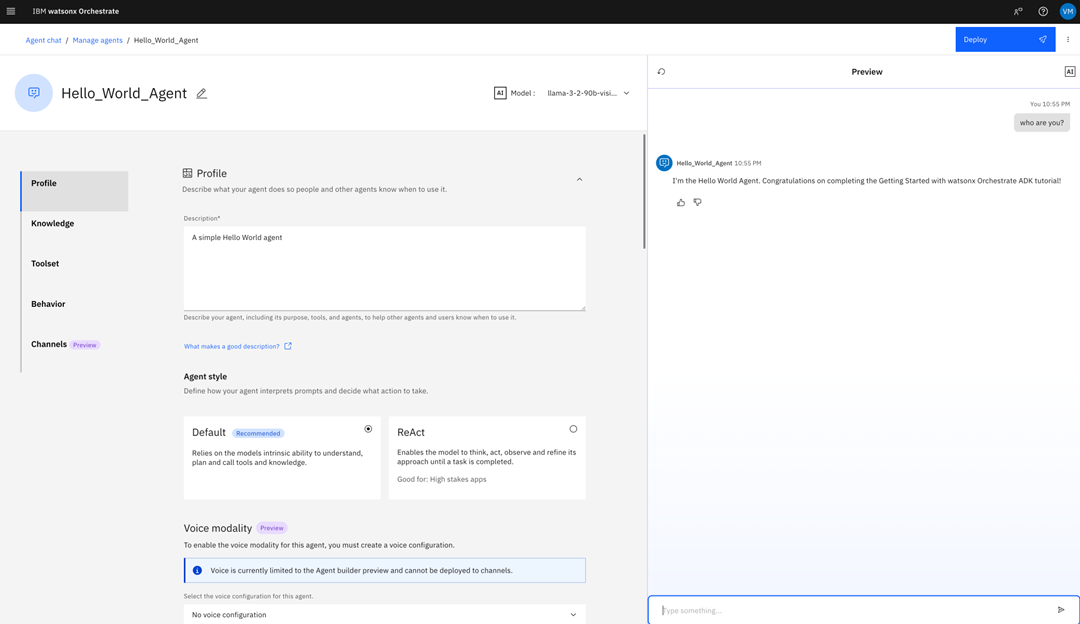
  3. Use the test chat to verify your agent’s behavior: Test your chat
Option 2: Test with watsonx Orchestrate Developer EditionIf you have installed watsonx Orchestrate Developer Edition , use the ADK command line:
orchestrate chat start
To install watsonx Orchestrate Developer Edition, you need a valid license. You can obtain a license by:
  • Purchasing a license for watsonx Orchestrate SaaS (on AWS or IBM Cloud)
  • Contacting the IBM sales department to purchase the Developer Edition exclusively
6

Validate your agent

Create a TSV test file with prompts and expected outputs:
test.tsv
You are Jane Doe in the US. What holiday is on 06/13/2025?	National Sewing Machine Day
What is the capital of France?	Paris
Run validation with ADK:
orchestrate evaluations validate-native \
    -t ./evaluations/test.tsv \
    -o ./evaluations/output
This generates an evaluation results archive containing:
  • test.tsv - your original test file
  • validation_results.json - detailed pass/fail logs
  • summary_metrics.csv - aggregate metrics
For more information, see Validating your agent.
7

Scaffold your offering folder

Create a packaging workspace for your offering:
orchestrate partners offering create \
  --offering my_offering \
  --publisher partner_company \
  --type native \
  --agent-name my_native_agent
This command creates a folder structure:
my_offering/
├── agents/            # Your agent definition(s)
│   └── my_native_agent.yaml
├── connections/       # (Optional) Connection definitions
│   └── my_connections.json
├── offerings/         # Top-level offering metadata
│   └── my_offering.json
├── tools/             # (Optional) Custom tools
│   └── ...
└── evaluations/       # Validation artifacts (you add these next)
    └── my_native_agent_eval.zip
Folder contents:
  • agents/: Your agent YAML with required metadata (publisher, tags, icon, etc.)
  • connections/ (optional): Credential or endpoint definitions
  • offerings/: Offering identity and type metadata
  • tools/ (optional): Tool definitions
  • evaluations/: Validation results from Step 6
8

Place validation results

Copy your evaluation results archive into the evaluations/ folder:
cp ./evaluations/output/my_native_agent_eval.zip ./my_offering/evaluations/
These artifacts prove your agent behaves correctly and are required for IBM onboarding review.
9

Update agent metadata

Before packaging, ensure your agent configuration file has all required fields:
my_native_agent.yaml
spec_version: v1
kind: native
name: my_native_agent
llm: watsonx/ibm/granite-3-8b-instruct
style: default
description: "Your agent description"
instructions: "Your agent instructions"

# Required metadata for catalog listing
tags: ["Sales", "Productivity"]  # Use catalog categories
publisher: "Your Company Name"
language_support:
  - "English"
icon: "<svg>...</svg>"  # Inline SVG string
category: "agent"  # Do not edit
restrictions: "editable"  # or "non-editable", "custom"

# Optional but recommended
related_links:
  - key: "support"
    value: "https://your-support-url.com"
    type: "hyperlink"
  - key: "documentation"
    value: "https://your-docs-url.com"
    type: "hyperlink"
  - key: "terms_and_conditions"
    value: "https://your-terms-url.com"
    type: "hyperlink"

# Do not edit these fields
agent_role: "collaborator"
delete_by: null

# Optional: Supported channels
channels:
  - "Teams"
  - "WhatsAppTwilio"
  - "FacebookMessenger"
  - "GenesysConnector"

# Your agent's tools and collaborators
tools: []
collaborators: []
10

Package your offering

Package everything into a distributable ZIP:
orchestrate partners offering package \
  --offering my_offering \
  --folder .
This command:
  • Validates folder structure and required files
  • Bundles artifacts into a portable archive
  • Outputs a versioned package (e.g., my_offering-1.0.zip)
The ZIP contains:
  • agents/ - your agent definitions with metadata
  • offerings/ - top-level metadata
  • connections/ - if defined
  • tools/ - if defined
  • evaluations/ - validation results
11

Submit your package

Submit your packaged agent through the IBM Concierge app:
  1. Log in to the IBM Concierge app.
  2. Navigate to My AI productsAgent.
  3. Select Native as the agent type.
  4. Upload your package file (my_offering-1.0.zip).
  5. Click Validate your agent and provide necessary details for test validation.
  6. Review validation results and address any issues.
  7. Click Save once you are ready to submit your package.
  8. Scroll to the top of the page and click Request approval.
  9. Select the deployment version, check the box I confirm that my company is authorized to use all materials, and click Request approval.

What happens next

After submission:
  1. IBM review: The IBM onboarding team validates your package structure, metadata, and evaluation results.
  2. Approval: Once approved, your agent is published to the watsonx Orchestrate Agent Catalog.
  3. Availability: Users can discover and provision your agent into their environments.
  4. Updates: To update your agent, increment the version number, repackage, and resubmit through the IBM Concierge app.

Need help?